
🖥️Kiosk Computer Issues
When to Get Help
We have plenty of support articles such as setting up your Model A kiosk, setting up your model B kiosk, and how to print from a kiosk. If you're unsure how to use the kiosk, you can read more here.
Depending on your issue, you may need to contact different members of our team. The information in this article will focus on kiosk technology issues, although we outline who to contact if you're having any other issue below as well.
Kiosk Technology
Issues Like...
Who to Contact
If the kiosk computer does not start
If your kiosk reboots and does not come back online
If your kiosk is having difficulty connecting to the wifi
If an application (like Zoom or Word) will not load
Contact Technology by Design
Printer
Issues Like...
Who to Contact
Your kiosk does print, scan, or copy
Your printer or kiosk is showing errors about printing
Your printer is not connecting to wifi
Your kiosk is not connecting to your kiosk
You need more ink
Refer to our article on printer issues
Furniture Questions
Issues Like...
Who to Contact
Model A cart
Model B desk or chair
Hand sanitizer
Package and component issues:
Missing pieces
Lost packages
Contact Laciey with A2J Tech
Host Site Coordination
Issues Like...
Who to Contact
Questions about your MOU
Questions about use
Coordinating scheduling or video meeting appointments
Contact Legal Services of North Dakota
How to Get Help
You can call, email, or submit a support ticket to get help with your issue. Our technology provider, Technology by Design, will ask you some questions to figure out what the issue is and walk you through how to get the kiosk up and running again.
Phone: 612-504-2300
Email: [email protected]
Submit a support ticket here
When you contact Technology by Design, please ensure to provide them with
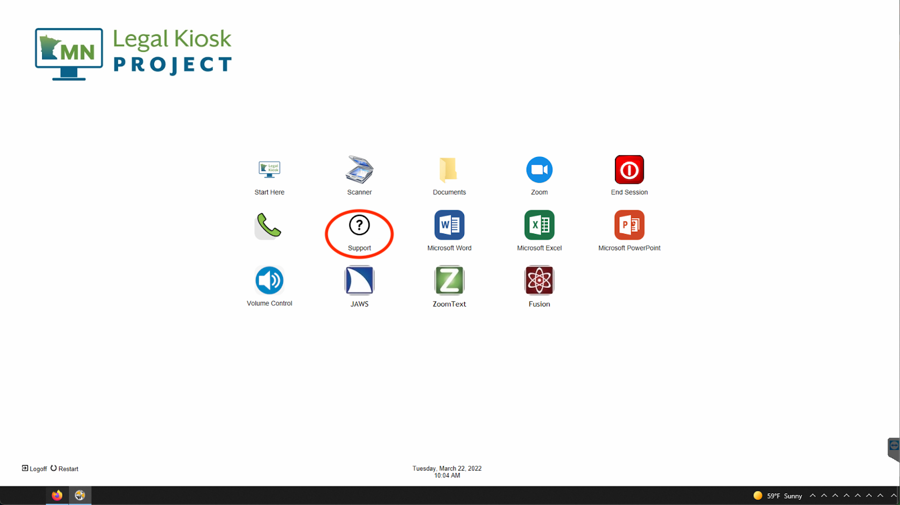
Your kiosk's serial number. This can be found by clicking on the Support button on the kiosk desktop. Not sure how to find the kiosk desktop? Read more below.
Your name, your organization, and how best to contact you if you are leaving a message or are disconnected.
A detailed description of the problem, its context (what was happening when the problem occurred), and its impact (severity) on your role.
The application you were using.
Any error messages associated with the issue.
How to Get to the Desktop
You can always find the main menu wherever you are in the kiosk in the bottom left-hand corner of the screen. Here you will find some icons.
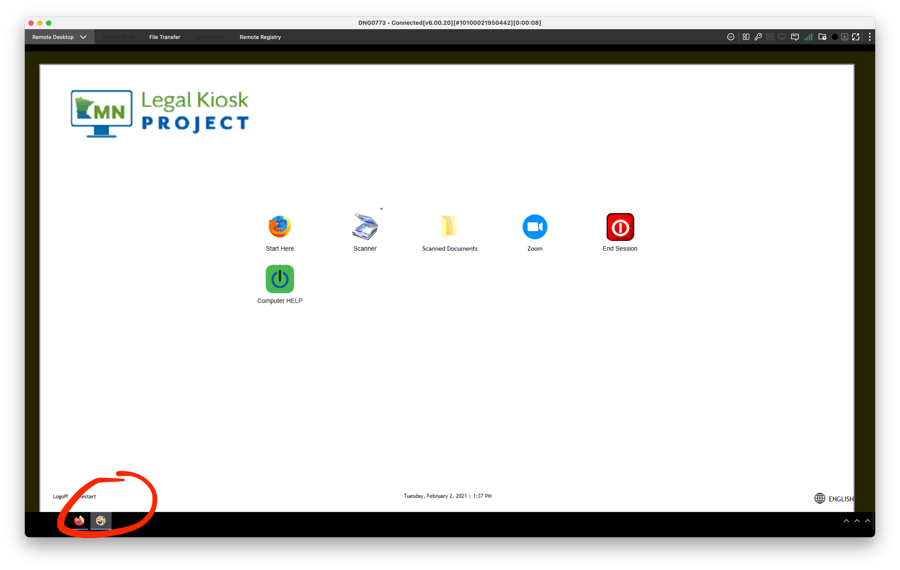
Web Browser: this icon will launch our main menu that can connect you with resources, programs, and free legal assistance. You can also use this as a normal web browser to check your email or surf the web.
Kiosk Desktop: this icon will bring you to the desktop of the kiosk as seen in the first image above. Here you can end a session, start scanning, or launch the web browser.
Last updated